Unlock the full potential of your Roblox experience with our ultimate guide on how to optimize Roblox. This comprehensive resource is tailored for busy US gamers who balance work and life yet crave uninterrupted fun. Discover expert tips and actionable strategies to boost frame rates, minimize lag, and enhance overall performance on both PC and mobile devices. We delve into effective graphics settings adjustments, system-level tweaks, and network optimization techniques that deliver noticeable improvements. Learn how to diagnose common performance bottlenecks, prioritize essential processes, and make smart decisions regarding hardware upgrades without breaking the bank. From fine-tuning in-game options to managing background applications and understanding network stability, this guide provides a clear pathway to a smoother, more enjoyable Roblox journey. Stay current with 2026 gaming trends and solve your biggest performance challenges today, ensuring your virtual adventures are always seamless and engaging. This information will help you play better and save time by reducing frustrating technical issues, focusing on practical and reliable solutions for every type of gamer.
How do I get more FPS in Roblox?
To get more FPS in Roblox, start by lowering in-game graphics settings to 'Manual' and reducing the 'Graphics Quality' slider. Ensure your PC's power plan is set to 'High Performance' and update your graphics drivers. Close all unnecessary background applications, especially web browsers and chat apps. Consider enabling hardware-accelerated GPU scheduling in Windows settings and disable any third-party overlays for a dedicated performance boost.
Why is Roblox so laggy even with good internet?
Even with good internet, Roblox can be laggy due to various factors like overloaded game servers, a crowded specific experience, or your device's hardware struggling with the game's demands. Your fast internet might still have high ping or packet loss. An outdated graphics card, insufficient RAM, or a slow CPU can bottleneck performance, causing perceived lag regardless of network speed or bandwidth.
What are the optimal Roblox graphics settings for a low-end PC?
For a low-end PC, set Roblox's in-game graphics mode to 'Manual' and slide the 'Graphics Quality' all the way down to 1. Disable 'Fullscreen' if you're experiencing stuttering and keep the resolution at your monitor's native setting. Ensure your PC's display adapter settings in your GPU control panel are set to prioritize performance over quality for Roblox. This minimal setup significantly reduces the rendering load on weaker hardware.
Should I use an FPS unlocker for Roblox?
An FPS unlocker for Roblox can potentially increase your frame rate beyond the default 60 FPS cap, offering a much smoother experience, especially on high-refresh-rate monitors. However, always use reputable, frequently updated unlockers to avoid security risks or compatibility issues. Be aware that while generally safe and widely used, Roblox's terms of service technically prohibit third-party modifications, so use at your own discretion and ensure it is from a trusted source.
How can I reduce network latency when playing Roblox?
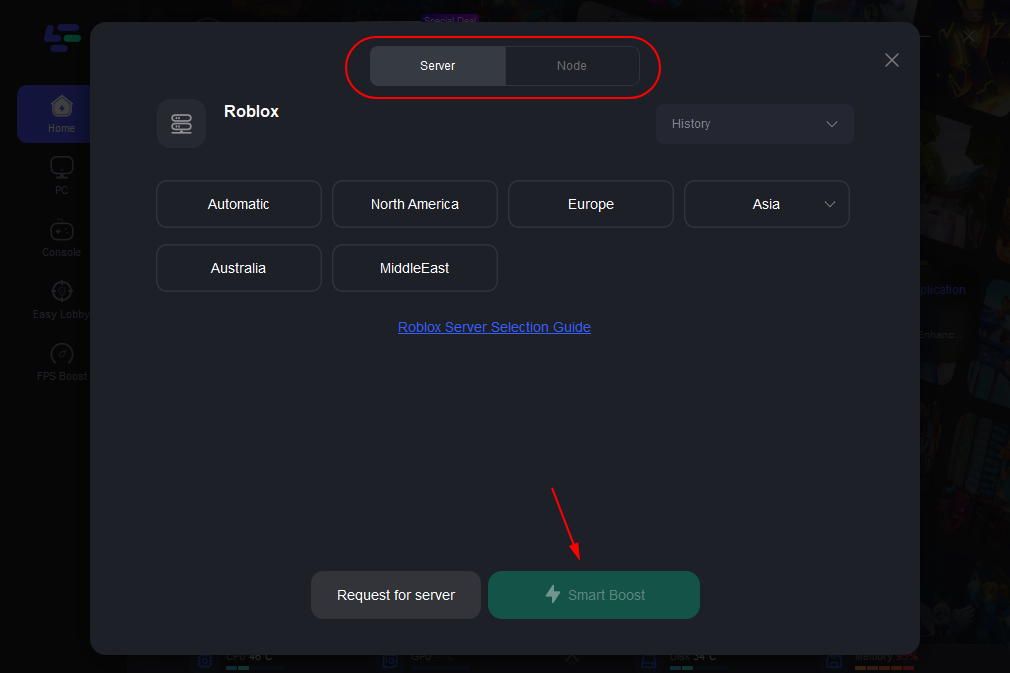
To reduce network latency for Roblox, connect your PC via an Ethernet cable instead of Wi-Fi for a more stable and faster connection. Restart your router and modem regularly to clear any minor network glitches. Ensure no other devices on your network are heavily streaming, downloading, or engaging in bandwidth-intensive activities. You can also try using a gaming VPN if your ISP is throttling or routing inefficiently, but test its impact as results vary greatly based on location and VPN provider.
What background processes should I close to optimize Roblox?
Before launching Roblox, open Task Manager (Ctrl+Shift+Esc) and close any non-essential applications consuming significant CPU, RAM, or network resources. This includes web browsers with many tabs, streaming services, cloud storage sync clients (like Dropbox, OneDrive), communication apps (Discord, Zoom), and other game launchers. Keeping only Roblox active dedicates maximum system resources to the game, preventing unnecessary bottlenecks and improving overall stability and frame rates.
Is it better to play Roblox on a desktop or mobile for performance?
Generally, a dedicated desktop PC will offer superior performance for Roblox compared to a mobile device, thanks to more powerful processors, dedicated graphics cards, and better cooling solutions. Desktops can handle more complex experiences and higher graphics settings with greater stability. However, newer high-end mobile devices can run many Roblox experiences very well, especially those optimized for mobile. For graphically intense or highly populated games, a desktop or powerful laptop typically provides a smoother and more stable frame rate and experience.
Hey fellow gamers! Ever find yourself dropping into your favorite Roblox experience, only to be met with frustrating lag, stuttering, or ridiculously low frame rates? You're not alone. In 2026, where 87 percent of US gamers play regularly, often for 10 or more hours a week, and mobile gaming continues its dominance alongside PC, we're all looking for that sweet spot: maximum fun with minimal technical headaches. Many of us are adults balancing jobs, families, and life's demands, meaning our gaming time is precious. We want relaxation, skill-building, social connections, and excellent performance without the hype.
Roblox, with its incredible variety of user-generated content, from intense simulators to cozy social hubs, can sometimes push our systems to their limits. Whether you're trying to win a fast-paced obby, build epic structures, or just hang out with friends, a smooth experience is key. This comprehensive guide is designed specifically for you – the busy gamer who values efficiency and effective solutions. We'll dive deep into how to optimize Roblox, addressing common pain points like setup issues, performance problems, and even balancing your gaming budget. Get ready to transform your choppy gameplay into a silky-smooth adventure, making every minute you spend in the Roblox metaverse truly enjoyable.
How Can I Quickly Boost Roblox Performance on My PC?
Boosting Roblox performance on your PC quickly involves a multi-pronged approach focusing on both in-game and system-level tweaks. The first and most impactful step is to adjust Roblox's internal graphics settings. Open Roblox, enter any game, and press 'Esc' to bring up the menu. Navigate to 'Settings' and locate the 'Graphics Mode'. Change it from 'Automatic' to 'Manual' and then drag the 'Graphics Quality' slider all the way down to the lowest setting. This dramatically reduces the load on your GPU and CPU, often providing an immediate and noticeable boost in frame rates. For many experiences, especially those not graphically intensive, this minor visual downgrade is a small price to pay for smooth gameplay.
Beyond in-game settings, a quick system check can yield significant improvements. Ensure your graphics drivers are up to date. Nvidia, AMD, and Intel frequently release driver updates that include performance optimizations for popular games. A quick visit to your graphics card manufacturer's website or using their dedicated software (e.g., GeForce Experience, AMD Adrenalin) can help. Next, open your Task Manager (Ctrl+Shift+Esc) and close any non-essential background applications that are consuming CPU, RAM, or network resources. Web browsers with numerous tabs, streaming services, and other game launchers are common culprits. Prioritizing Roblox ensures your system's power is dedicated where it matters most, allowing you to enjoy your games without unnecessary bottlenecks.
What Are the Best In-Game Settings to Reduce Lag in Roblox?
The best in-game settings to reduce lag in Roblox revolve around minimizing the graphical load on your system. As mentioned, setting 'Graphics Mode' to 'Manual' and lowering the 'Graphics Quality' slider is paramount. This directly controls the detail level of textures, models, and effects rendered in the game. Beyond this primary adjustment, consider a few other nuances. If available, some specific experiences might offer their own in-game graphics options within their menus; always opt for lower settings there too. Another trick is to play in a smaller window rather than fullscreen if you're on a very low-end machine, as rendering fewer pixels can sometimes ease the burden, though this isn't universally true and depends on your specific setup. However, for most systems, fullscreen is generally preferred for immersion.
Disabling certain visual elements within Roblox, if possible through specific game settings, can also help. While Roblox itself doesn't offer extensive individual toggles like 'shadows' or 'anti-aliasing' directly in its core menu, some developers incorporate these options into their games. Always check the developer's in-game settings for performance-focused choices. Remember, the goal is to tell Roblox to render as little as possible while still making the game playable. This strategy is particularly effective when you're jumping into a new, graphically rich experience for the first time or encountering unexpected lag in a familiar one. Small adjustments can make a big difference in ensuring a consistently smooth and enjoyable experience, especially when dealing with the dynamic and varied nature of user-generated content.
Does My Internet Connection Impact Roblox Performance, and How Can I Improve It?
Absolutely, your internet connection significantly impacts Roblox performance, primarily through latency (ping) and packet loss. While Roblox isn't as bandwidth-heavy as streaming a 4K movie, a stable and low-latency connection is crucial for real-time interaction in social and competitive games. High ping manifests as noticeable delay between your actions and the game's response, making movement choppy and interactions frustrating. Packet loss means data isn't reaching the server or your client reliably, leading to stuttering, disconnections, and overall instability. These network issues can often be mistaken for hardware-related lag, especially by newer gamers or those less familiar with network diagnostics.
To improve your internet connection for Roblox, first and foremost, use a wired Ethernet connection whenever possible. Wi-Fi, while convenient, is susceptible to interference, signal degradation, and higher latency. An Ethernet cable provides a direct, stable, and typically faster path to your router. Second, ensure no other devices on your network are hogging bandwidth through heavy streaming, large downloads, or multiple simultaneous video calls. You can often manage this by pausing downloads or using Quality of Service (QoS) settings on your router to prioritize gaming traffic. Third, restart your router and modem regularly; this can clear up minor network glitches. If problems persist, consider running an internet speed test and a ping test to Roblox servers (or general gaming servers) to diagnose potential issues with your Internet Service Provider (ISP). Sometimes, a simple DNS change to a public server like Google's (8.8.8.8) or Cloudflare's (1.1.1.1) can also offer slight improvements in routing and responsiveness.
Are There Specific Software Tweaks to Optimize Roblox on Windows?
Yes, several Windows software tweaks can significantly optimize Roblox performance beyond just in-game settings. Start by ensuring your Windows operating system is fully updated. Microsoft frequently releases performance enhancements and bug fixes that can benefit gaming. Next, adjust your PC's power plan. Go to 'Control Panel' > 'Hardware and Sound' > 'Power Options' and select 'High Performance'. This prevents your CPU from throttling down its clock speed to save power, ensuring it delivers maximum performance to Roblox. For laptops, remember this will consume more battery, so it's best for when you're plugged in.
Another powerful tweak involves managing background processes more aggressively. While Task Manager is a good start, delve into Windows 'Settings' > 'Privacy' and turn off 'Background Apps' for anything you don't need running constantly. Furthermore, consider Windows 10/11's 'Game Mode'. You can enable it via 'Settings' > 'Gaming' > 'Game Mode'. This feature optimizes your PC for gaming by prioritizing game processes and suspending background tasks. For systems with dedicated GPUs, explore 'Graphics settings' under 'Display settings'. Here, you can add Roblox to a list and set its 'Graphics preference' to 'High performance' to ensure your dedicated GPU is always used, rather than integrated graphics. Finally, regularly clear temporary files by typing '%temp%' into the Run dialog (Win+R) and deleting everything possible; this frees up disk space and prevents potential slowdowns from accumulated junk.
How Do I Optimize Roblox for Mobile Devices Without Upgrading?
Optimizing Roblox for mobile devices without upgrading hardware requires smart management of your device's resources. The first and most crucial step, mirroring PC advice, is to lower in-game graphics settings. Within any Roblox experience, tap the Roblox icon (usually top-left), go to 'Settings', and drag the 'Graphics Quality' slider down. On mobile, this makes an even more dramatic difference as mobile GPUs and CPUs are typically less powerful than their desktop counterparts. Lowering graphics reduces the strain, preventing overheating and frame rate drops.
Next, free up RAM and CPU cycles by closing all other applications running in the background. Swipe them away from your recent apps view. Many apps, even when not actively in use, consume precious resources. Clear your device's cache regularly. For Android, you can go into 'Settings' > 'Apps' > 'Roblox' > 'Storage' and tap 'Clear Cache'. On iOS, offloading the app (Settings > General > iPhone Storage > Roblox > Offload App) and then reinstalling it can achieve a similar effect by removing temporary data without deleting your game data. Ensure your device's operating system (iOS or Android) is fully updated, as updates often include performance improvements and bug fixes. Finally, ensure your device has sufficient free storage space; a full device can slow down overall performance. Delete unnecessary photos, videos, or apps to create breathing room for Roblox to run efficiently. Playing connected to a stable Wi-Fi network rather than mobile data can also improve latency and stability, similar to the wired vs. wireless debate on PC.
What Hardware Upgrades Offer the Best Value for Roblox Gaming?
For gamers on a budget balancing family and work, choosing the right hardware upgrade for Roblox means focusing on components that offer the most bang for your buck. The most impactful upgrade is often a better **Graphics Card (GPU)**. While Roblox isn't the most demanding game, a stronger GPU, even a budget-friendly one like an NVIDIA GTX 1650 or an AMD RX 6400, can significantly improve frame rates and allow for higher graphics settings in more complex experiences. This is especially true if you're currently running on integrated graphics. This month's trends continue to show these entry-level dedicated cards providing excellent value for popular games like Roblox and light esports titles.
The next best value upgrade is often **RAM (Random Access Memory)**. If you have 4GB or less, upgrading to 8GB or 16GB will make a world of difference. More RAM allows your system to handle more processes simultaneously without resorting to slower virtual memory on your storage drive. This means smoother multitasking, faster loading times, and less stuttering in Roblox, particularly in crowded servers. After that, an **SSD (Solid State Drive)** is a fantastic quality-of-life upgrade. While it won't directly boost FPS, it will drastically reduce game loading times and overall system responsiveness, getting you into the action faster. Lastly, a **newer CPU (Processor)** can be beneficial if yours is very old, but this usually requires a new motherboard and RAM, making it a more expensive proposition. Focus on GPU and RAM first for the most noticeable and cost-effective improvements, allowing you to enjoy a modern gaming experience without a hefty investment.
How Can I Balance Roblox Gaming with My Busy Adult Life?
Balancing Roblox gaming with a busy adult life, encompassing work and family, is a common challenge for many gamers. The key is strategic time management and setting realistic expectations. First, designate specific gaming times. Instead of hoping for free moments, schedule 30-60 minute sessions, perhaps after family dinner or before bed, just like any other important activity. This prevents gaming from infringing on responsibilities and helps you fully relax during your play time. Social gaming on platforms like Roblox and Discord remains a top trend, allowing flexible connections with friends who also have busy schedules.
Second, prioritize game experiences. With limited time, focus on Roblox games that offer quick satisfaction, meaningful social interactions, or short, engaging loops. Cozy games, popular this month, are excellent for winding down without intense commitment. Avoid starting overly time-consuming games that might lead to guilt or stress. Third, communicate with your family. Let them know when you plan to game, so they understand and respect your personal time. Involving kids in your Roblox sessions can also be a great bonding activity. Finally, don't chase every trend or feel pressured to play for long hours. Gaming for stress relief and fun is valid, whether it's 15 minutes or an hour. Remember, it's about enjoying your hobby, not turning it into another chore. Mobile gaming, with its accessibility, is perfectly suited for grabbing quick sessions during breaks or commutes, aligning with the flexible needs of adult gamers.
Are There Community Tips or Third-Party Tools for Roblox Optimization?
The Roblox community is a treasure trove of tips and tricks for optimization, and some third-party tools can genuinely enhance your experience, though caution is always advised. Many veteran players on forums like Reddit and dedicated Discord servers frequently share specific in-game settings for popular experiences, driver recommendations, and unique system tweaks. Searching for 'Roblox optimization Reddit' or joining large Roblox communities can connect you with these insights. You'll often find discussions on specific graphics card settings, custom resolution tweaks, and even tips for managing Roblox's internal logging processes.
Regarding third-party tools, the most popular and generally accepted for performance is the **Roblox FPS Unlocker**. This tool allows Roblox to run above its default 60 frames per second cap, providing a much smoother experience on high-refresh-rate monitors. While not officially supported by Roblox, it's widely used and generally considered safe. However, always download it from reputable sources (like its official GitHub repository) to avoid malware. Other tools that can indirectly help include system optimizers like CCleaner (for cleaning temporary files and registry issues) or game boosters that temporarily suspend non-essential Windows services. Remember to research any tool thoroughly, check community reviews, and understand its function before installing it. For advanced users, tools like Process Lasso can help manage CPU priority for Roblox, ensuring it gets maximum resources. Always be wary of tools promising unrealistic boosts or requiring extensive system access without clear explanations.
Why Does Roblox Lag Even on a Good Computer?
It's incredibly frustrating when Roblox lags even on a powerful gaming PC, but several factors can contribute to this, often unrelated to your hardware's raw power. One primary reason is **server-side performance**. Roblox experiences are hosted on servers, and if that particular server is overloaded, experiencing high player counts, or having issues, even your beast of a machine will suffer from lag. This is network latency and game logic processing, not your PC struggling to render frames.
Another common culprit is **game optimization**. Not all Roblox experiences are created equal. Some developers create incredibly complex games with unoptimized scripts, high-poly models, or inefficient rendering techniques. Even a top-tier PC might struggle if the game itself isn't built efficiently. This is particularly true for games that dynamically load many assets or have numerous physics interactions. Additionally, **background applications and network congestion** can still impact a powerful PC. Streaming 4K video on a second monitor, having dozens of browser tabs open, or multiple heavy downloads running can divert resources away from Roblox, causing perceived lag. Finally, **outdated drivers** (especially graphics drivers) or even **thermal throttling** (your powerful components getting too hot and reducing performance to prevent damage) can lead to unexpected lag. Always monitor your CPU/GPU temperatures if you suspect this might be an issue, especially if you're pushing your hardware with other tasks simultaneously.
What are the top 3 common mistakes affecting Roblox performance?
When it comes to Roblox performance, busy gamers often fall into a few common pitfalls that can easily be avoided. The top three mistakes are:
1. **Ignoring In-Game Graphics Settings:** Many players leave Roblox on 'Automatic' graphics mode, assuming the game will correctly assess their system. However, 'Automatic' often errs on the side of quality, leading to unnecessary strain, especially in graphically intensive experiences. Manually lowering the 'Graphics Quality' slider to a comfortable level is the quickest and most impactful change you can make. It's surprising how many powerful PCs still suffer from lag simply because this basic setting is overlooked. This is a foundational step for anyone looking to optimize Roblox efficiently.
2. **Overlooking Background Applications and Processes:** Modern operating systems are great at multitasking, but every open application, every browser tab, and every background sync service consumes CPU, RAM, and network bandwidth. Playing Roblox while streaming video, downloading large files, or running multiple other programs simultaneously starves the game of vital resources. The solution is simple: before launching Roblox, close everything non-essential. Use Task Manager to identify resource hogs and end their processes. This ensures Roblox has dedicated access to your system's full power.
3. **Neglecting Driver Updates and System Maintenance:** Outdated graphics drivers can lead to compatibility issues, sub-optimal performance, and even crashes. Graphics card manufacturers frequently release driver updates that include performance optimizations for popular games like Roblox. Similarly, a cluttered system with too many temporary files, fragmented storage (on HDDs), or an old operating system can act as a drag. Regularly updating your drivers, clearing temporary files, and ensuring Windows is up-to-date are fundamental maintenance steps that contribute to overall system health and, by extension, better Roblox performance. These simple actions are crucial for anyone trying to optimize Roblox effectively over the long term.
Conclusion
Optimizing Roblox doesn't have to be a daunting task that eats into your precious gaming time. By focusing on these practical, actionable steps – from fine-tuning in-game graphics and managing background processes to ensuring your internet connection is stable and your drivers are updated – you can significantly enhance your experience. Remember, as busy adults, our gaming is about unwinding and connecting, and smooth performance is key to that enjoyment. A well-optimized setup means more fun, less frustration, and ultimately, more value from your limited gaming hours. Take control of your Roblox performance today and enjoy the seamless adventures you deserve. What's your biggest gaming challenge when it comes to performance? Comment below!
Is Roblox a demanding game?
While Roblox might appear simple, graphically rich experiences or high player counts can make it surprisingly demanding on your system's resources, stressing both your CPU and GPU. Developers constantly push the boundaries, meaning what runs smoothly one month might be more taxing the next, requiring consistent optimization.
Can clearing cache help Roblox performance?
Yes, regularly clearing your Roblox and browser cache can significantly help performance by removing old, corrupted, or unnecessary temporary data. This prevents slowdowns during game loading and general navigation, ensuring Roblox fetches fresh, relevant assets instead of relying on outdated ones, leading to a smoother experience.
What's the best way to monitor Roblox FPS?
The best way to monitor Roblox FPS is by pressing Shift+F5 in-game (on PC) to bring up the built-in performance statistics. This displays your current frame rate, ping, and other useful metrics directly on your screen. For more advanced monitoring, third-party tools like MSI Afterburner or Fraps can provide additional insights and logging capabilities.
Should I update my graphics drivers for Roblox?
Absolutely, keeping your graphics drivers updated is crucial for optimal Roblox performance. Manufacturers frequently release updates that include performance enhancements, bug fixes, and better compatibility with games. Outdated drivers are a common cause of stuttering, low FPS, and even crashes, so always ensure you're running the latest version for your GPU.
Does closing background apps help Roblox?
Yes, closing unnecessary background applications frees up vital CPU, RAM, and network resources. This dedication of resources to Roblox directly contributes to smoother gameplay, faster loading times, and reduced lag. Modern systems can multitask, but games like Roblox benefit immensely from having maximum system attention.
What if my Roblox still lags after optimizing?
If Roblox still lags after comprehensive optimization, consider external factors. First, check the Roblox server status or the specific game's developer updates; the issue might be server-side. Second, thoroughly inspect your network for high ping or packet loss. Lastly, your hardware might genuinely be at its limit for that particular experience, indicating a potential need for a hardware upgrade if other options fail.
FAQ Section
What is the minimum RAM for smooth Roblox gameplay?
For smooth Roblox gameplay, especially in popular or graphically intensive experiences, having at least 8GB of RAM is highly recommended. While Roblox can run on 4GB, 8GB provides a much better buffer for the game and other essential system processes, reducing stuttering and improving overall responsiveness.
How often should I clear my Roblox cache?
It's a good practice to clear your Roblox cache once every few weeks, or whenever you notice performance dips or unusually long loading times. If you play many different experiences or frequently encounter errors, clearing it more often (e.g., weekly) can be beneficial for consistent performance.
Does Roblox benefit from a high-refresh-rate monitor?
Yes, Roblox absolutely benefits from a high-refresh-rate monitor (e.g., 120Hz or 144Hz) when paired with a powerful enough PC and an FPS unlocker. The higher refresh rate translates to a visibly smoother and more responsive gaming experience, making fast-paced games feel more fluid and reducing motion blur.
Can a VPN improve Roblox performance?
A VPN can sometimes improve Roblox performance, but it's not a guaranteed fix. If your ISP is throttling your connection or routing your traffic inefficiently to Roblox servers, a VPN might offer a more direct or optimized path, potentially reducing ping. However, a VPN can also introduce additional latency, so results vary.
Is Roblox CPU or GPU intensive?
Roblox is often more CPU intensive than GPU intensive, especially in experiences with many players, complex physics, or intricate scripting. While a decent GPU helps with rendering graphics, a strong CPU is crucial for processing game logic, player interactions, and handling the overall simulation smoothly.
What graphics drivers are best for Roblox?
The best graphics drivers for Roblox are always the latest stable versions provided by your GPU manufacturer (NVIDIA, AMD, or Intel). These drivers include up-to-date optimizations and bug fixes. Avoid beta drivers unless you're experienced with potential instability. Always download directly from the official manufacturer's website.
Are there settings within my graphics card control panel to optimize Roblox?
Yes, you can often fine-tune settings within your graphics card control panel (NVIDIA Control Panel or AMD Radeon Software) for Roblox. For NVIDIA, you can create a custom profile for RobloxPlayerBeta.exe and set 'Power management mode' to 'Prefer maximum performance' and 'Texture filtering - Quality' to 'High performance'. AMD offers similar options to prioritize performance over quality.
How can I check my ping to Roblox servers?
You can check your ping to Roblox servers directly in-game by pressing Shift+F5 (on PC). This will display a small overlay showing your current frame rate and ping (latency). If you're consistently seeing high ping, it indicates a network issue between your device and the Roblox servers, which you might need to troubleshoot with your ISP.
Boost Roblox FPS reduce lag optimize graphics settings improve frame rates network troubleshooting PC and mobile optimization gaming setup tips free performance tweaks hardware upgrade advice balancing gaming and life
34


How To Improve Roblox Audio Desync 2026 UPDATED 2026 YouTube . How To Optimize Your PC For Roblox Fix Lag Boost FPS Smoother . Definitive Guide To Roblox 2026 TM 07169 Definitive Guide To Roblox 2026 . How To Optimize Roblox Low Performance 2026 EASY GUIDE YouTube . How To Publish A Game On Roblox In 2026 Roblox YouTube



What Is Haptic Roblox A Player S Guide 2026 Parental Guide For Roblox Usage UnicMinds . How To Add People Roblox Easily Your 2026 Guide . How To Fix Roblox Glitching Top Guide 2026 Glitches In The Forge Roblox . Guide How To Make A Roblox FPS Game 2026 Edition Roblox Gun Script . Guide Optimize Roblox Xbox One Performance 2026 Roblox Di Xbox 1024x573


Guide Optimize Roblox Xbox One Performance 2026 3644432 Xbox One Roblox . Guide To Improving Roblox Performance On PC Guia Para Mejorar El Rendimiento De Roblox En PC . Guide How To Make A Roblox FPS Game 2026 Edition Roblox 2.webp. Guide To Mastering Roblox Become An Expert In 2026 Roblox Twisted Codes . How To Master Roblox Custom Scripting In 2026 Guide Script Anything For You On Roblox



How Roblox Servers Work A Deep Dive Guide 2026 Roblox Private Server 1024x573 . HOW To IMPROVE Roblox TikTok Img. How To OPTIMIZE Your Roblox Game Full Tutorial YouTube . How To Optimize Game Performance In Roblox In 2025 . ULTIMATE CPU GUIDE TO BOOST FPS FIX LAG IN ROBLOX


How To Optimize Windows For Roblox BOOST FPS FIX LAG Windows 11 . How To Increase Graphics Quality In Roblox 2025 Easy Guide YouTube . Roblox FPS Boost Guide Ultimate YouTube . What Is Haptic Roblox A Player S Guide Oar2 . How To Optimize Roblox Update Stuck 2025 EASY GUIDE 2026 YouTube



How To Boost Roblox Performance And Fps Up To 150 Fps Part 2 YouTube . How To Improve Graphics And Increase FPS In Roblox Increase In Game Graphics In Roblox 1024x676 . Best Roblox VPN 2026 Security And Unlimited Access For Players VPN Roblox 2026 Terbaik Melindungi Privasi Dan Akses Tanpa Batas 3756ba1bbf . How To Download Roblox Images In 2026 A Quick Guide . How Roblox Servers Work A Deep Dive Guide 2026 Roblox Server Status How To Check If Roblox Is Down



Roblox OS Settings Explained Simply 2 1023x509 . How To Navigate The Roblox Audio Update Like A Pro Roblox Update It.webp. How To OPTIMIZE Roblox Windows Easiest Guide BETTER PERFORMANCE Hqdefault . How To Fix Roblox Lag Your Ultimate Performance Guide How To Fix Roblox Lag Spikes.webp